DesignJet T630 Setup Guide
This is a short guide for getting the DesignJet T630 connect and running to be able to print gantt charts. This requires two things, Microsoft Project and HP Click.
HP Click can be downloaded from here https://support.hp.com/us-en/drivers/hp-click-printing-software/15550865
Start by modifying your gantt chart as needed, remove any unnecesarry columns or sections to save on ink & paper.
After, go to
File->Print. For printer, set it toMicrosoft Print to PDF. If it doesn’t show the preview on the right already, click print preview.On the left, select to print the entire project, and then go toPage Setup. It is located below the paper orentiation and size.In
Page Setup, under the Page tab in the Scaling section change it from the defaultAdjust to->Fit to 2 pages wide by 2 pages tall. Then in the View tab, enablePrinter Notes. Everything else can be left at defaults. Then go back and print this to a PDF and save it.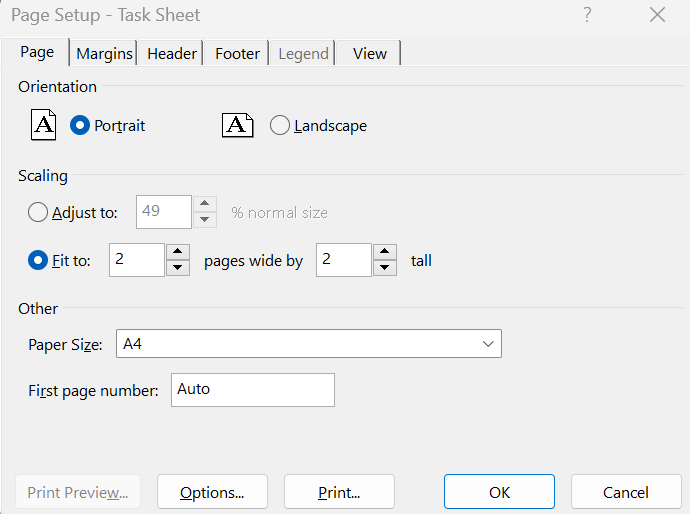
Page Setup Open the app
HP Click. You should have downloaded this earlier. It will do an inital set up and ask you to connect to a printer. Unfortunately, this app is poorly made and can’t actually find printers on your network. ClickAdd Manuallyat the bottom left. Type in the IP address of the printer10.0.10.182.Drag and drop your PDF into HP Click. Set the quality for the lowest, and the color mode to black & white. On the left it shows the two pages it will print out as. If there are any extra, click the three dots when hovering over them to delete them.
On the far right under the printer, select source as
Roll 1. Then at the top of the paper view there is a size, it should default toA4 11.69 x 8.27Changes this toFit to source landscape. Change this for other the paper as well.Now that you have selected these options, proceed with printing.